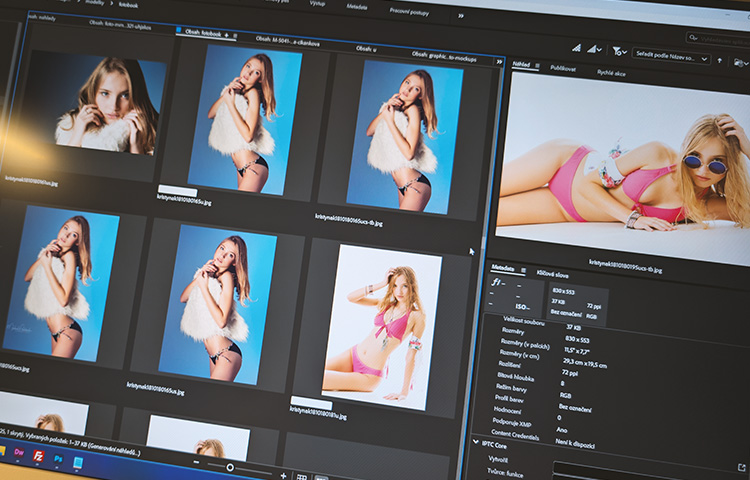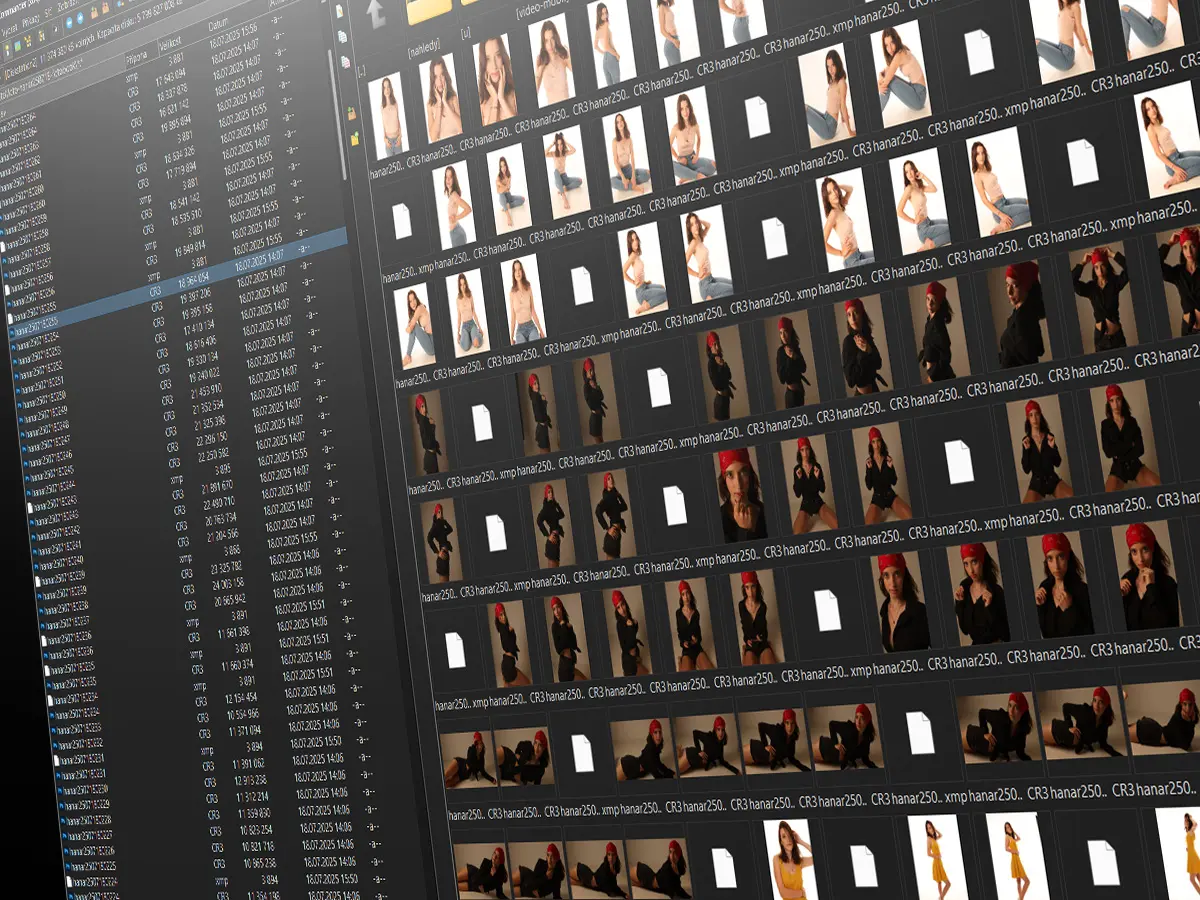
Do you want to be truly successful as a photographer? Then you need a system. And that starts before you even start retouching or editing your photos - it starts with naming your files.
Many photographers unknowingly set themselves up for chaos right from the start. Folders named "photoshoot1", files named "IMG_4782" and then hours of searching for the right image. Let's do it better.
Bulk renaming of digital photos - two tools that really work for me. Over the years of practice, I have stuck with two programs. Both are reliable, both save me time.
1. Total Commander
2. Adobe Bridge
1. Total Commander: Speed and powerful masks
You can download it for free at [ghisler.com](https://www.ghisler.com/). For example, compared to the classic Windows Explorer, it is a completely different world - but today we will focus on just one function: Multi-Rename Tool.
How to rename files in Total Commander?
In the left or right panel, open the folder with the files you want to rename. Select the files with the Insert key (or + to select by name mask). Then run Files → Multi-Rename Tool...
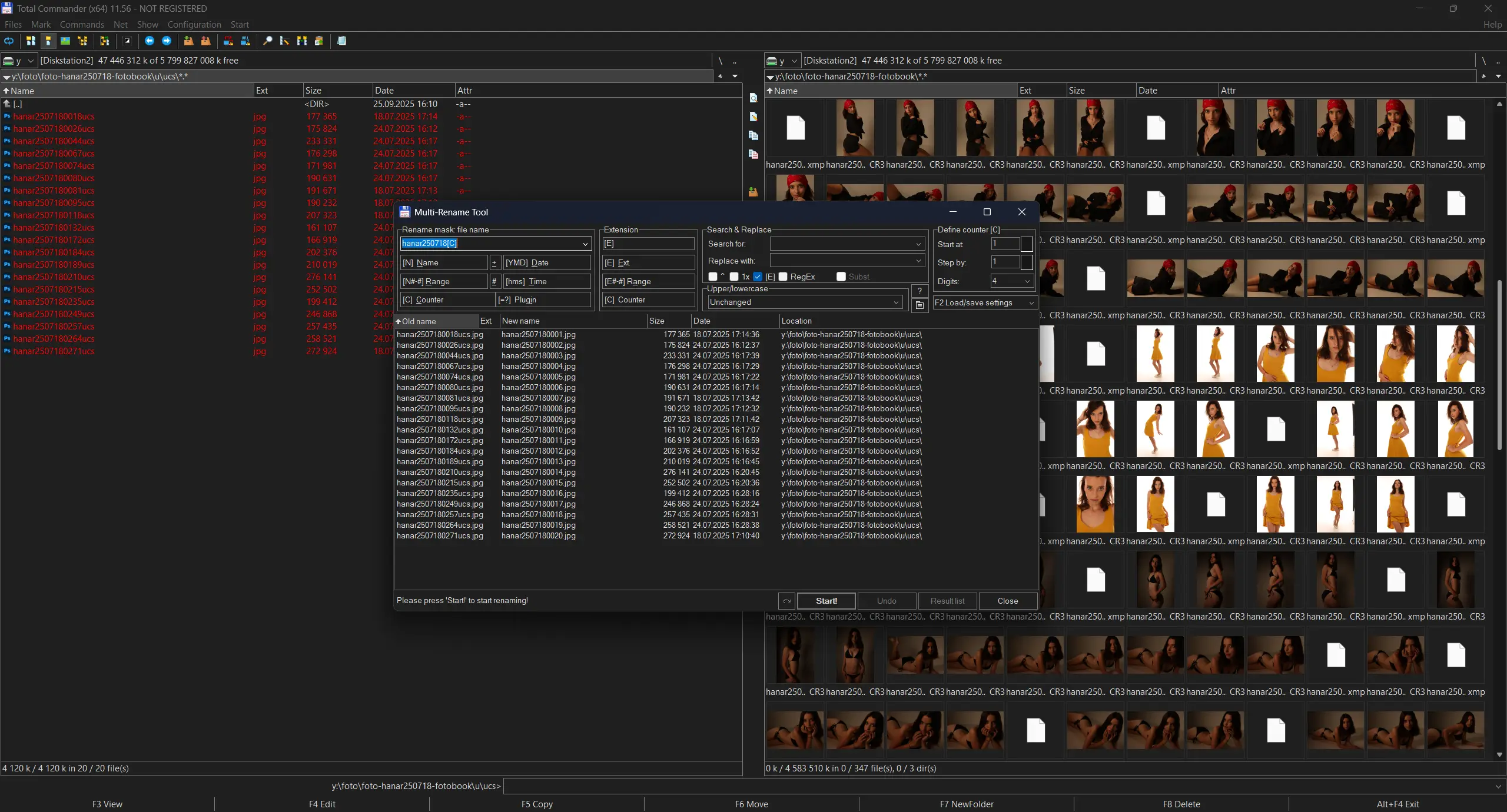
A dialog box will open that will seem complicated at first, but you will quickly realize that it has amazing logic. What's great is that you can see the new file names before you permanently rename the files. That's key. Renaming is very difficult to reverse, and anyone who has messed up hundreds of photos knows what I'm talking about.
How do I create new file names?
The key is the Rename Mask: File Name field. This is where you put together your entire naming system.

I recommend this scheme:
- Base name = photoshoot topic. For example, photos of Hana R. in July 2025 → write `hanar250718`
- Add a serial number [C] to make each file unique.
Define counter:
Start at (first number) = 1,
Digits = 4.
Start the action: Click the Start! button.
Valuable tip: Never use the numbers 1-1000 without zeros. Your files would be sorted alphabetically completely wrong (1, 10, 100, 11, 2, 20...). Always use a format with zeros at the beginning and a fixed number of positions (0001–1000). Why 4 positions? Because even in my long career as a photographer, I have never had a photoshoot where I took more than 9999 photos.
2. Adobe Bridge: Visual management and metadata
Why Bridge and not just Total Commander? Because Bridge takes RAW + XMP as one unit. You rename the CR3 file and the corresponding XMP is automatically renamed. No manual searching, no broken file pairs.
How to rename in Adobe Bridge?
Select all the files you want to rename (Ctrl+A for all in a folder, or Ctrl + click to select them all). Then go to Tools → Batch Rename.
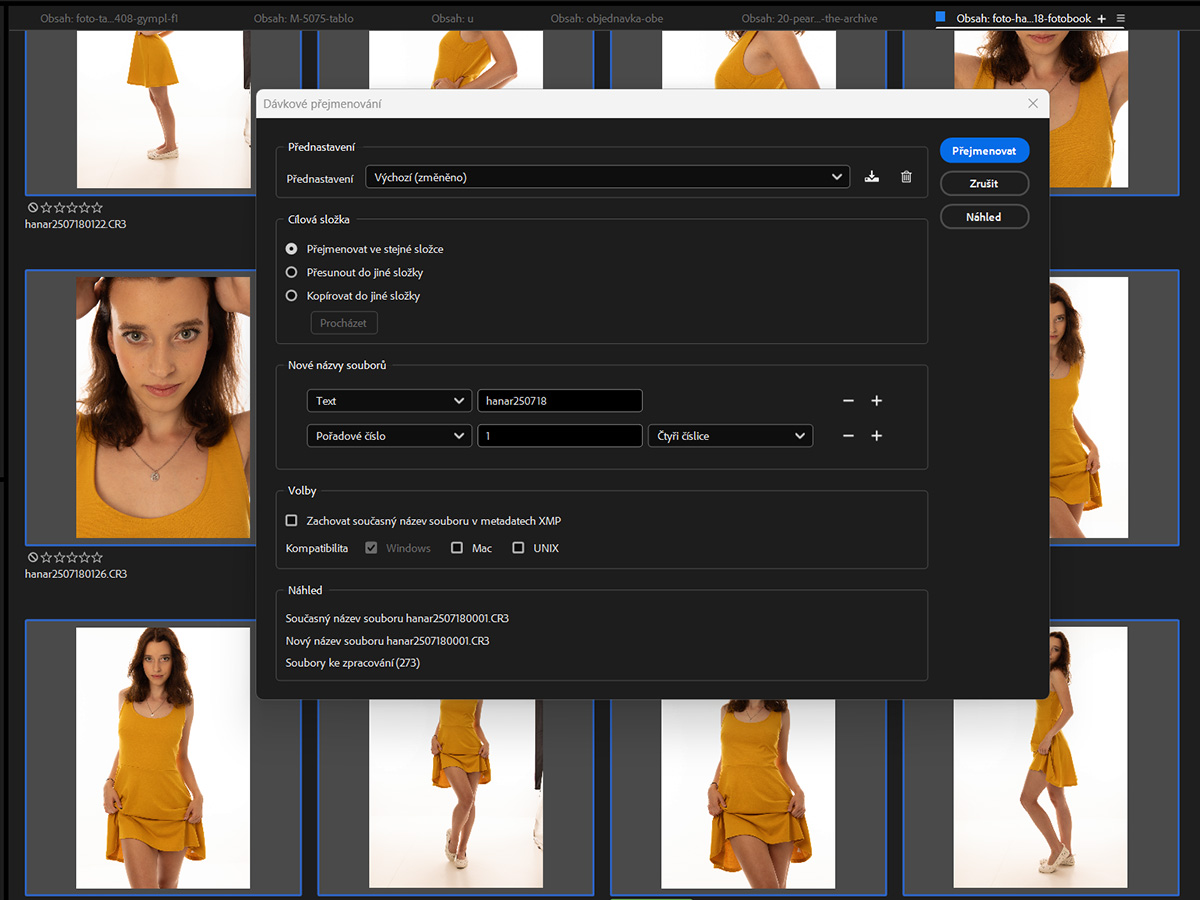 My settings:
Preset: Default
Select destination: You can rename files directly in the given folder, or move or copy them elsewhere. I use it most often: Rename In Same Folder (you don't duplicate files unnecessarily).
New Filenames:
[Text] hanar250718
[Sequence number] 1 Four digits (numbers 0001-9999).
Options: Preserve current filename in XMP Metadata (if you need).
In the Preview section, you can check how the files will look. Then just press Rename.
Click Rename.
Total Commander vs Adobe Bridge?
Choose Total Commander for lightning-fast renaming by name or system date.
Use Adobe Bridge for
- renaming RAW files (i.e. RAW+XMP file pairs),
- if you need to work with EXIF data (e.g. when you have photos from multiple cameras and want to sort them chronologically by the time they were taken).
My tip for renaming photos:
Don't put off renaming "for later". Do it right after downloading the photos from your camera - before you make copies of the originals, PSD files with layers, or anything else.
The proven procedure is simple:
1. Download the photos from your camera
2. Sort them and ruthlessly discard the bad shots
3. Rename the final selection
Five minutes of work now = hours of saved searching later.